
DESKTOP
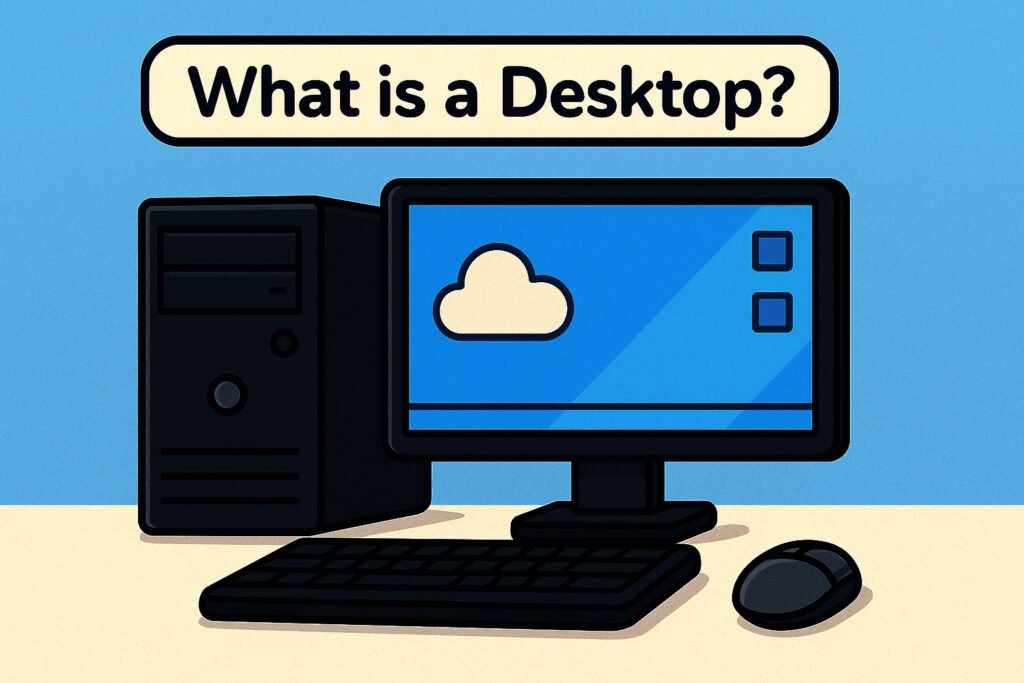
A desktop on a computer and a desktop computer, bith have different meanings. A desktop computer refers to a surface or a table where all the necessary thing like monitor, keyboard, mouse , and other important objects are arranged for work. It is a setup designed for use on a desk or a table. Whereas the desktop on a computer refers to teh graphical user interface or GUI that users interact rhater than physical computer . In this artical, we wiil discuss the computer and see the key components of a desktop its history, and its importance.
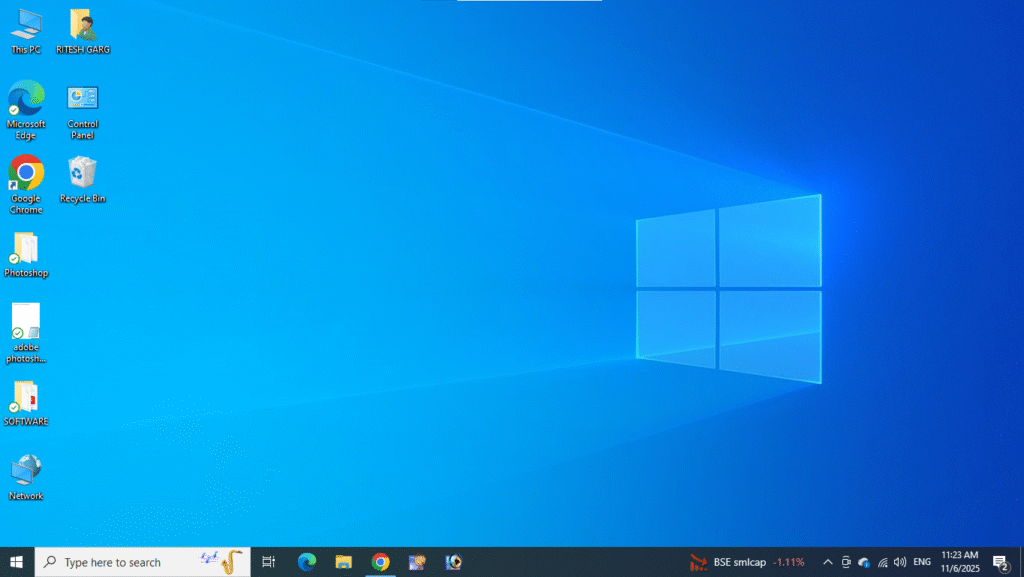
Importance of Desktops
Desktop provide an interface environment for the user so that they can easily navigate through different applications,files, and folders.Without the presence of desktop, it was very difficult to open applications directly but with the launch of desktops, user have to just move the cursor to the specific application to launch that application. We can also custoize our desktops very easily. Changing wallpaper, adding or removing icons, moving icon anywhere on the desktop,and navigating through different desktops, are some very useful geatures in the desktop. The taskbar on the desktop helps users manage different applications,opened application, monitor their notifications,etc.Desktops are important because they provide user-friendly interface for accessing and managing various aspects of the computer.Overall we can these features offered by the desktop in Windows.
There are many item the main ones are as follow-
- My Computer
- Recycle Bin
- My Document
- Task bar
- Start Menu
- Files and Folders
1.My Computer
My computer is a Microsoft Windows feature first found in Window 95 and included with all later verisions that lets you explore and manage the contents of your computers drivers.The image shows examples of the my computer icon in microsoft windows XP, Vista and windows 7, and in Windowa 10 . Although the name has changed, “This PC “still ” has the same functionality as “My Computer.”
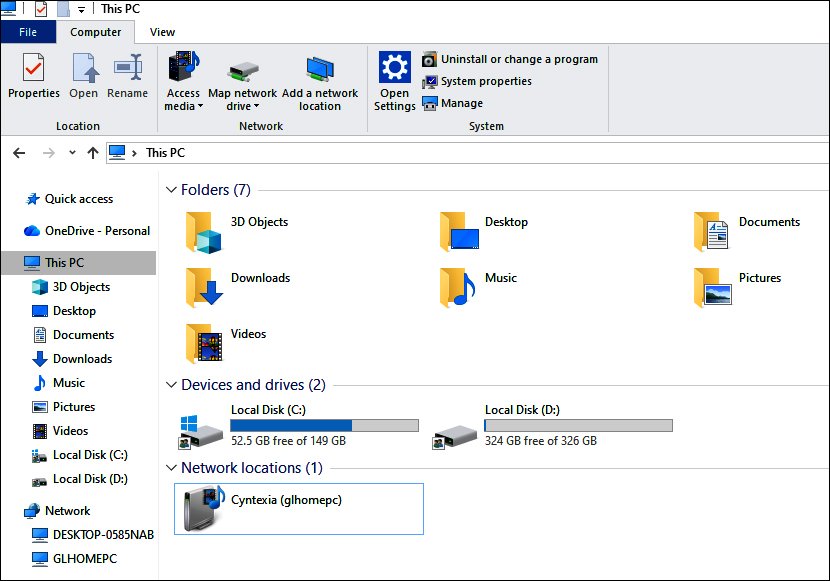
Exploring Hard Disk by My computer
In windows,through ‘My Computer’ we can open the icons of any partition of our computers storage unit or hard disk by double -clicking them,and by opening various folders and subfolders of the opened partition,exploring the detailed list of stored files is called hard disk exploration .By right clicking on the disk drive icon displayd in My Computer’ and selecting properties from the shortcut menu,wecan also obtain complete details about the type of hard disk drive,the file system, the storage capacity of the drive , the memory used, and the free memory space.
My Computer
This is the system folder of the computer.When we create a file and save it directly, it gets saved in my documents. Folders like my music, my pictures, my videos,etc.are by default located in this folder. this folder is present on the desktop as well as in the start menu and we can use it from both places.
Task Bar
The taskbar is windows is a very important part,as it shows the programs being used. From here, we can close , minimize, and maximize the programs in use . In Windows XP , the taskbar was improved; it can be locked, and it can mov ed from on place to another. If too many program are open,they can also be groupes . On the right side ,there is a notification area where time, network ,or some important programs can be added.
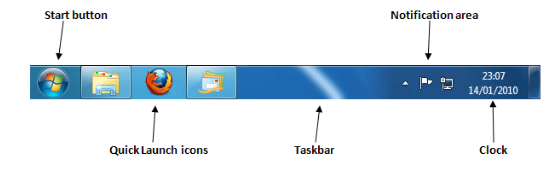
Start button
When Windows XP is started for the first time, teh start menu is disolayed. It contains all the programming of Windows as well as the programs we install. which are automatically added here and can be used later form the start menu . It has options like control panal search,Network ,etc through which the computer’s setting can be changed. The start button is the foundation of windows. Programs are not opened directly by starting the computer; they are opened through the start button.
Files and Folders
You know that the files created on a computer are stored on some mediim, such as a hard disk ,floppy disk,etc. Due to the large number of files,to make it easier to find and use different files,every computer has a system like ESI or something similer . Windows also uses this method to orgnize files.





Leave a Reply